
In this blog, we shall try to establish connectivity between Alfresco Document Repository (ADR) with Pega Infinity.
Business Context
This integration can help to implement the requirements which state to store Pega’s case attachment in a different content management system than by its own Pega database.
Pre-requisites
An Alfresco repository URL is required to establish the connection with Pega. If you don’t have any repository URL, then it can be installed in these three ways
- Standard Distribution of Alfresco
- Cloud Trail of Alfresco
- Containerized Distributiion of Alfresco
Install using Docker & Make It Running
- Clone Reposity
git clone https://github.com/Alfresco/acs-deployment.git cd acs-deployment/docker-compose
2. Deploy and make this container up & running.
docker-compose -f docker-compose.yml up
Once it’s up & running, you must see as below in your docker desktop.

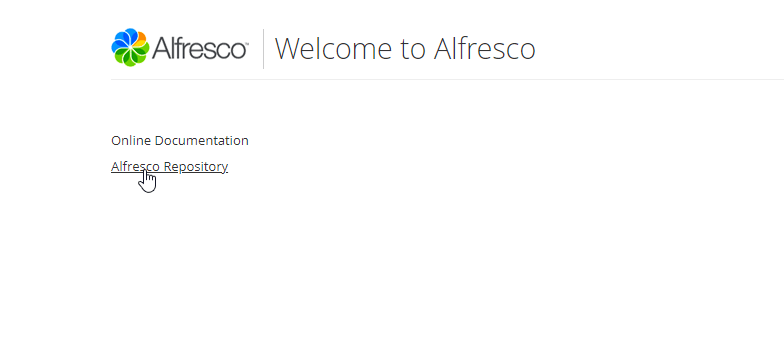
3. Open default Alfresco page as below

4. Click on Alfresco Document Repository
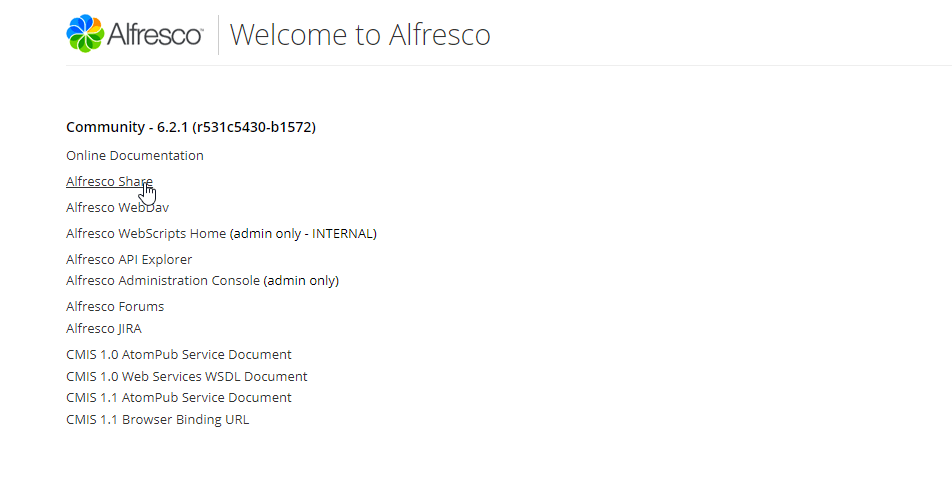
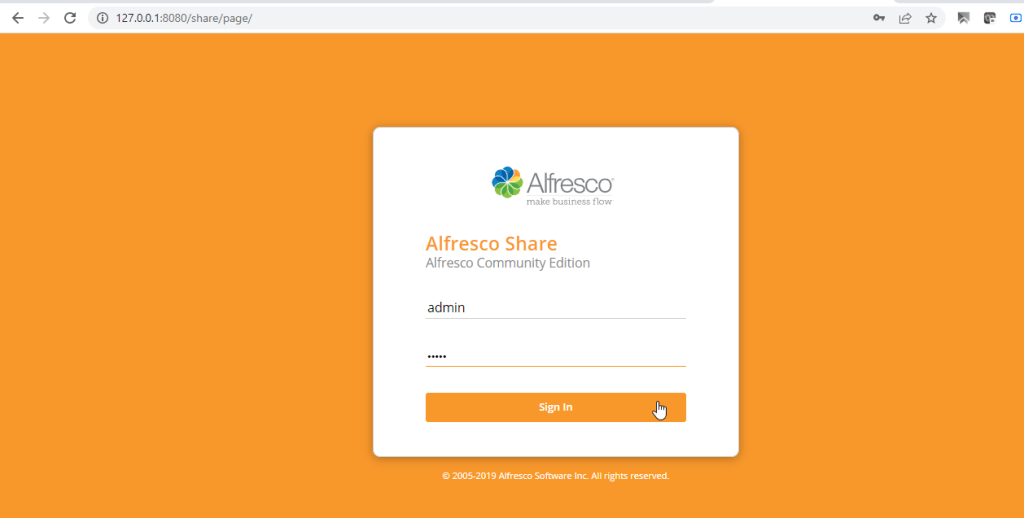
5. Once you click on Alfresco Share, you can log in with default admin/admin credentials
6. Repository section can provide the view of the list of Root-level folders which exist in the default repository.

Pega CMIS Integration Steps
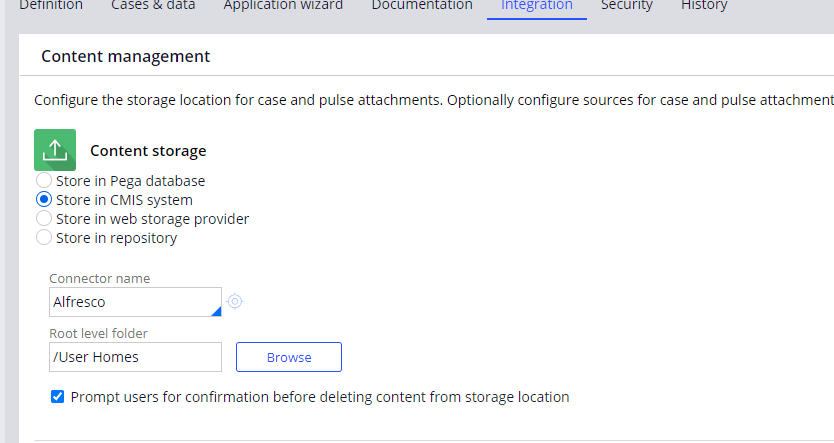
- Open any application definition & go to Integration tab to enable the connectivity to Alfresco default repository.
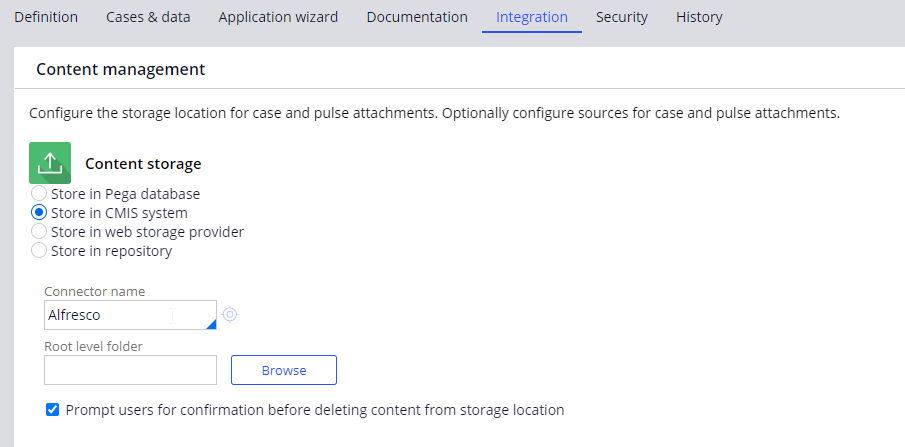
2. Create a CMIS connector with connection string as below with the default admin/admin credentials and check connectivity.
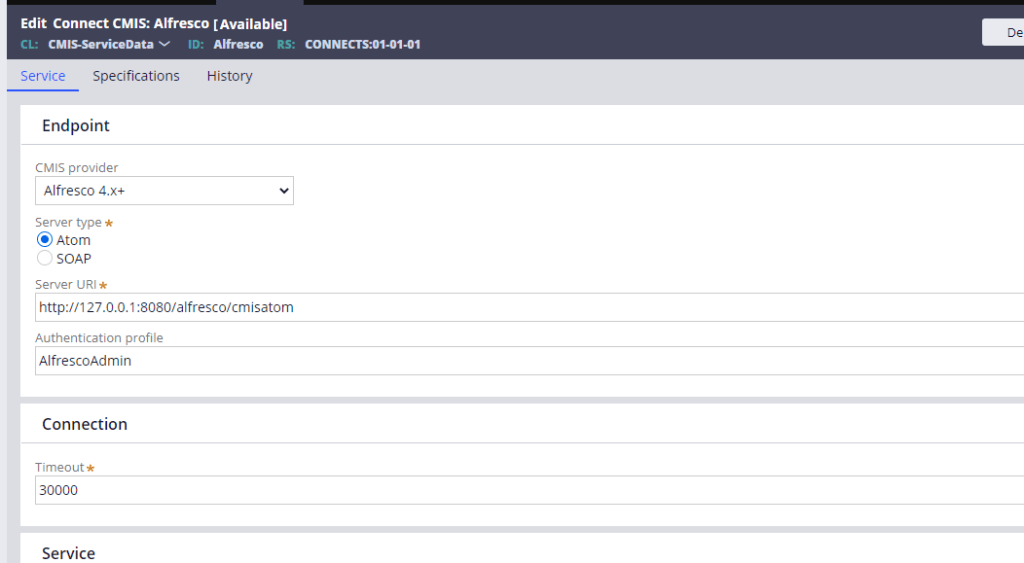
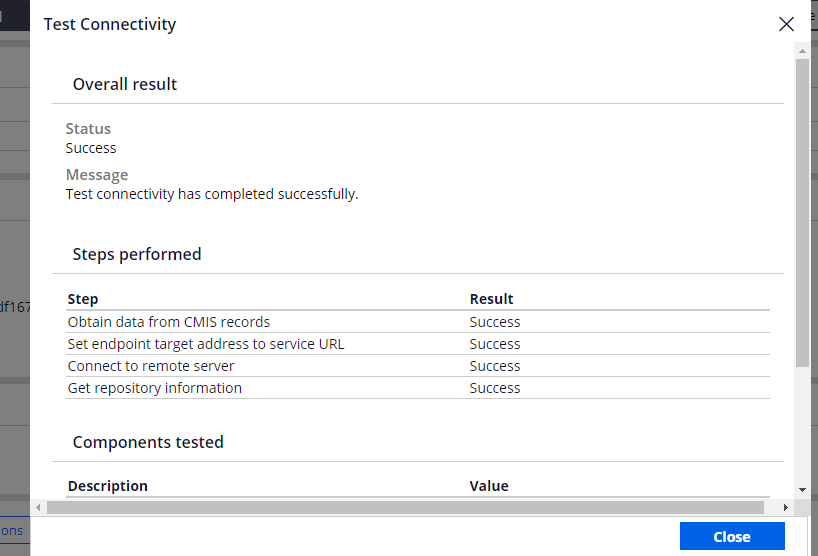
3. From the Integration window, zoom for the available root folders

4. Choose a folder & save the settings.
Run a Case with Attachments & Verifiy
Run a case and upload an attachment as below
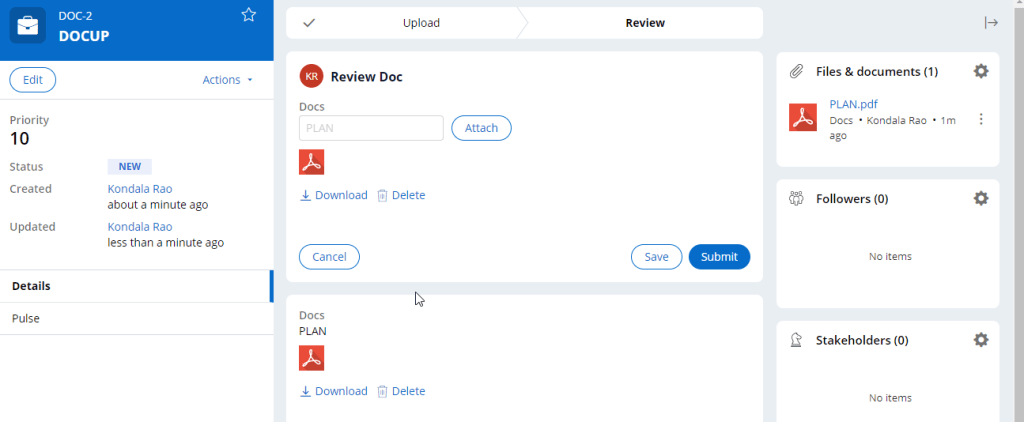
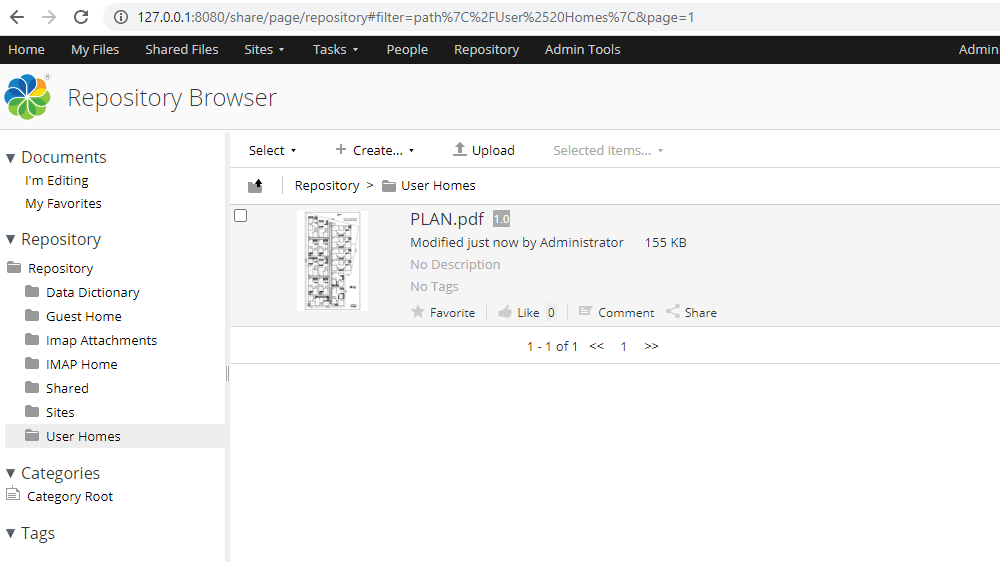
Now go back to Alfresco share to find out this uploaded document in the repository under the selected folder. In our case, we have used the ‘User Homes’ folder and found the above document there instead of Pega’s default database.
Summary
We have seen how to install, configure the Alfresco instance & its integration with the Pega instance by CMIS standard connector.

 Think & Grow with PegaOOTB